TABLE OF CONTENTS
- Purpose
- Add a Participant
- Obtaining Parental Consent
- Episode of Care
- Bulk Assignment of Screening
- Reports & Dashboards
Purpose
To provide guidance on adding participants to bhworks, obtaining parental consent, bulk‑assigning the Universal Screening, and reviewing the related dashboards, reports, and screening results.
Add a Participant
Searching for Participants
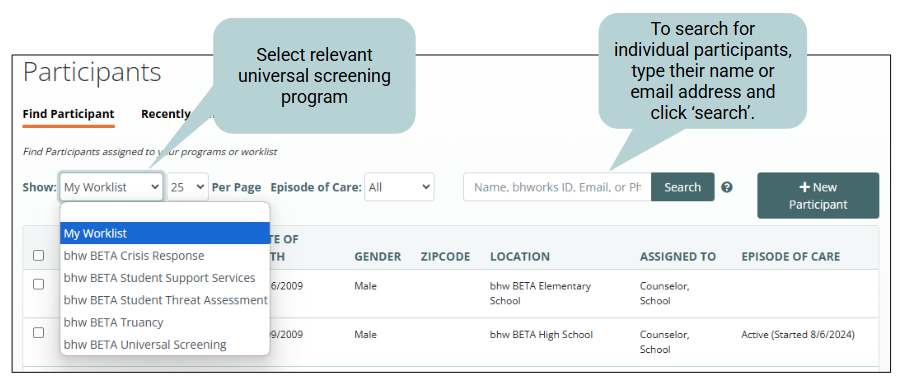
- Navigate to Participant tab.
- Search for the participant in the 'Search' bar OR
- Select the program from the 'Show' dropdown menu to see all the participants assigned to a program.
- If your participant is not yet in bhworks, view 'Creating a New Participant'.
Creating a New Participant
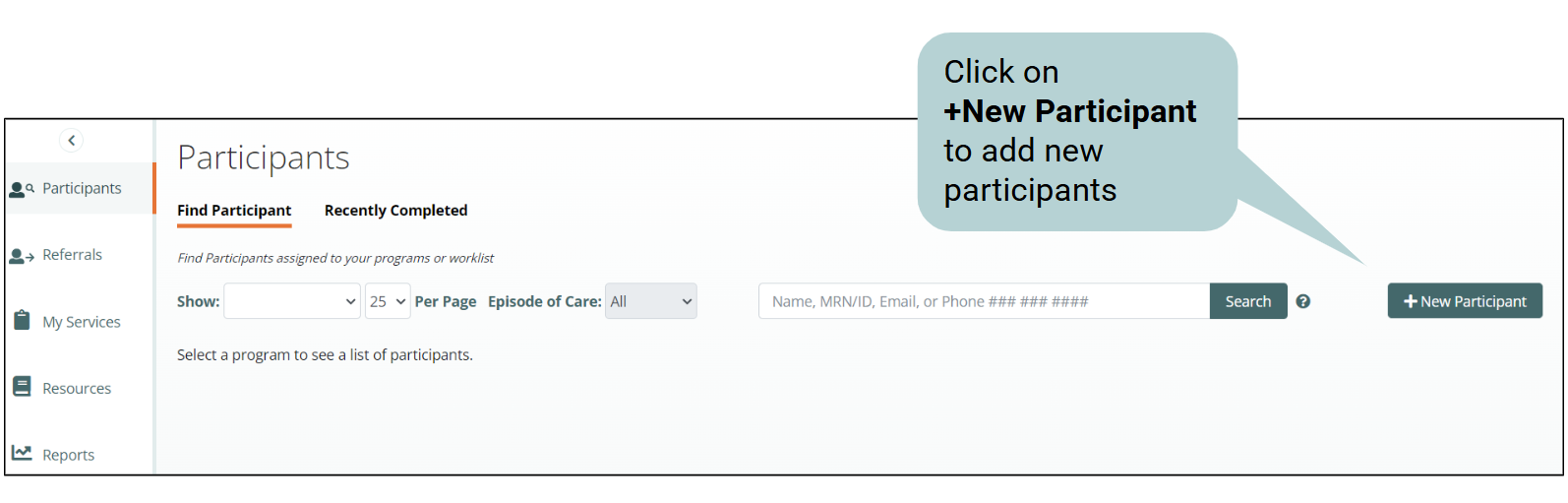
- To create a new participant, navigate to the 'Participants' tab and select '+New Participant'.
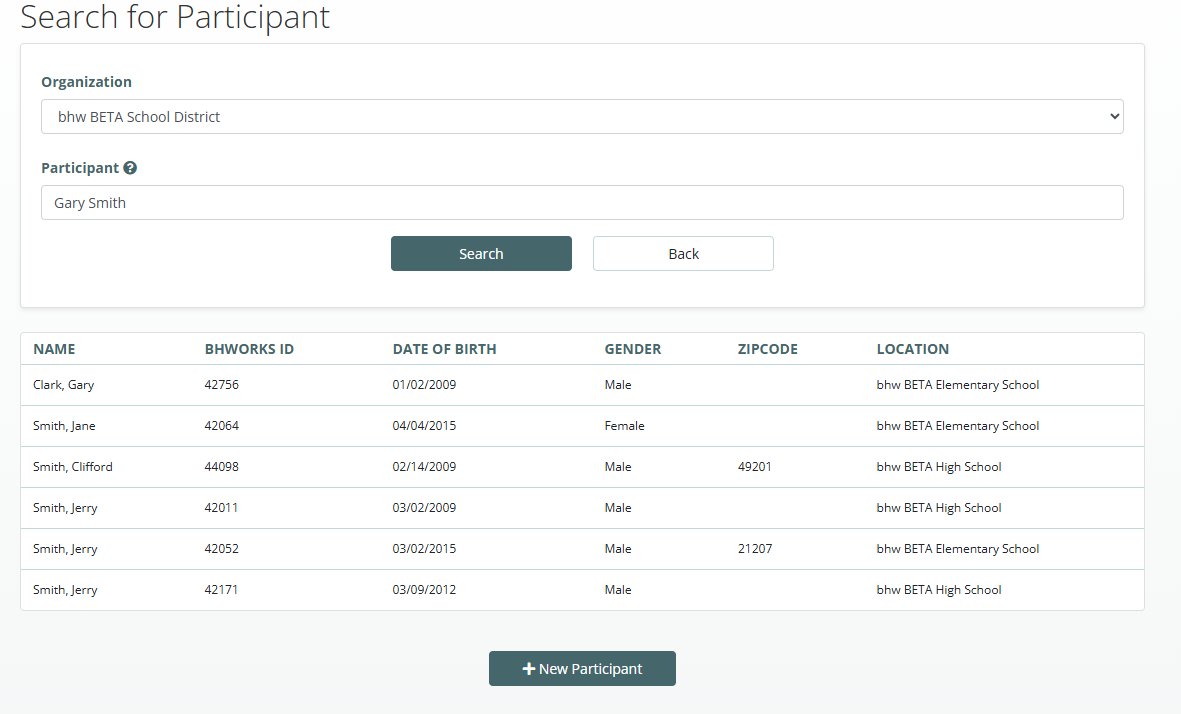
- Enter the following information
- Participant Organization: Select the student's district from the dropdown menu.
- Participant: Search for the student by entering their first and/or last name.
- Click Search.
- If NO match is found: Click '+New Participant'.
- If a match is found: Click the Participant's name, then select the desired Task button in the pop-up window.
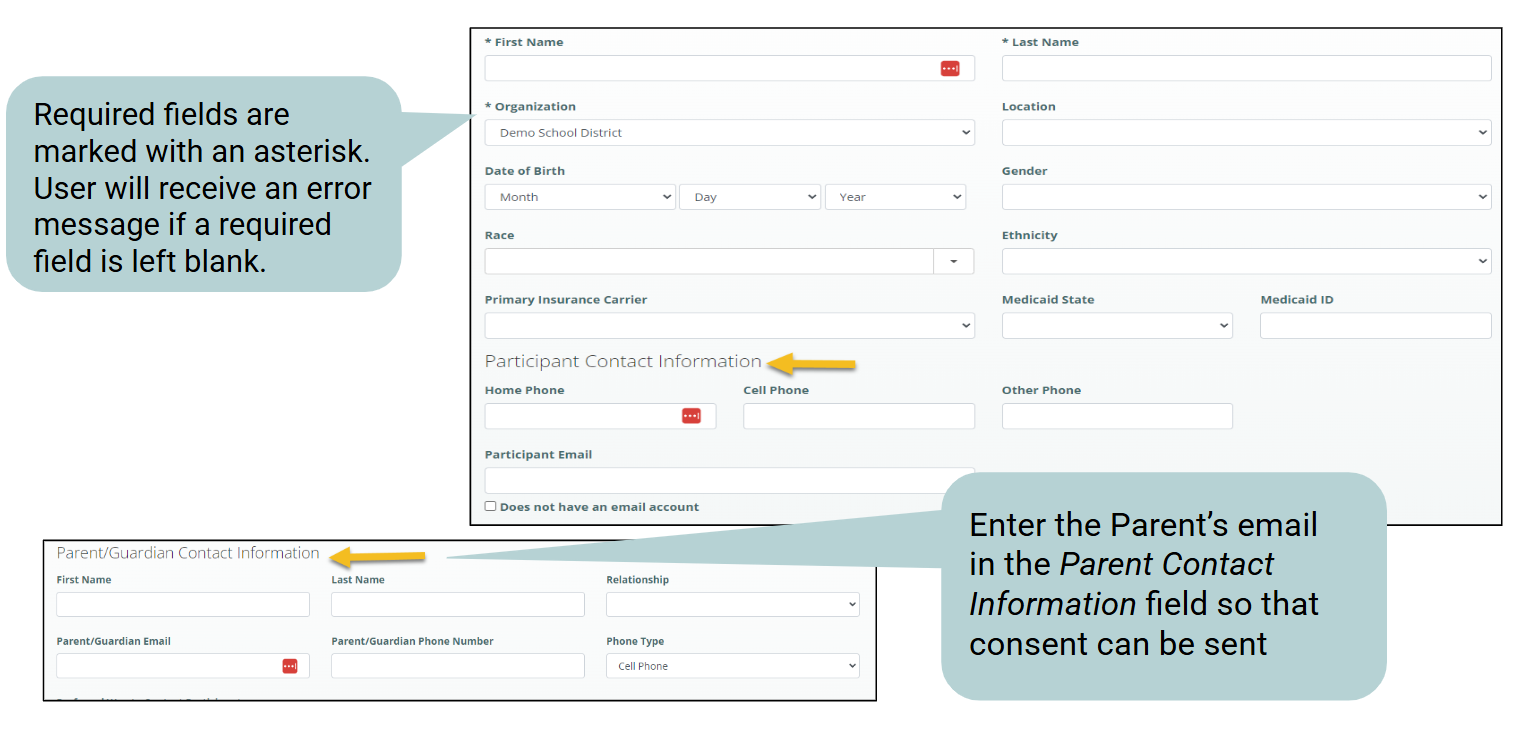
- Complete the Participant Profile
- Required fields are marked with an asterisk.
- The Participant Email address should be the student’s email. If a parent’s email address is entered and saved here and they have a sibling you will not be able to save or use the parents email address for the sibling. The parent’s email address should be input in the Parent/Guardian Contact Information.
- Fill in all required fields and press the Continue button at the bottom of the screen.
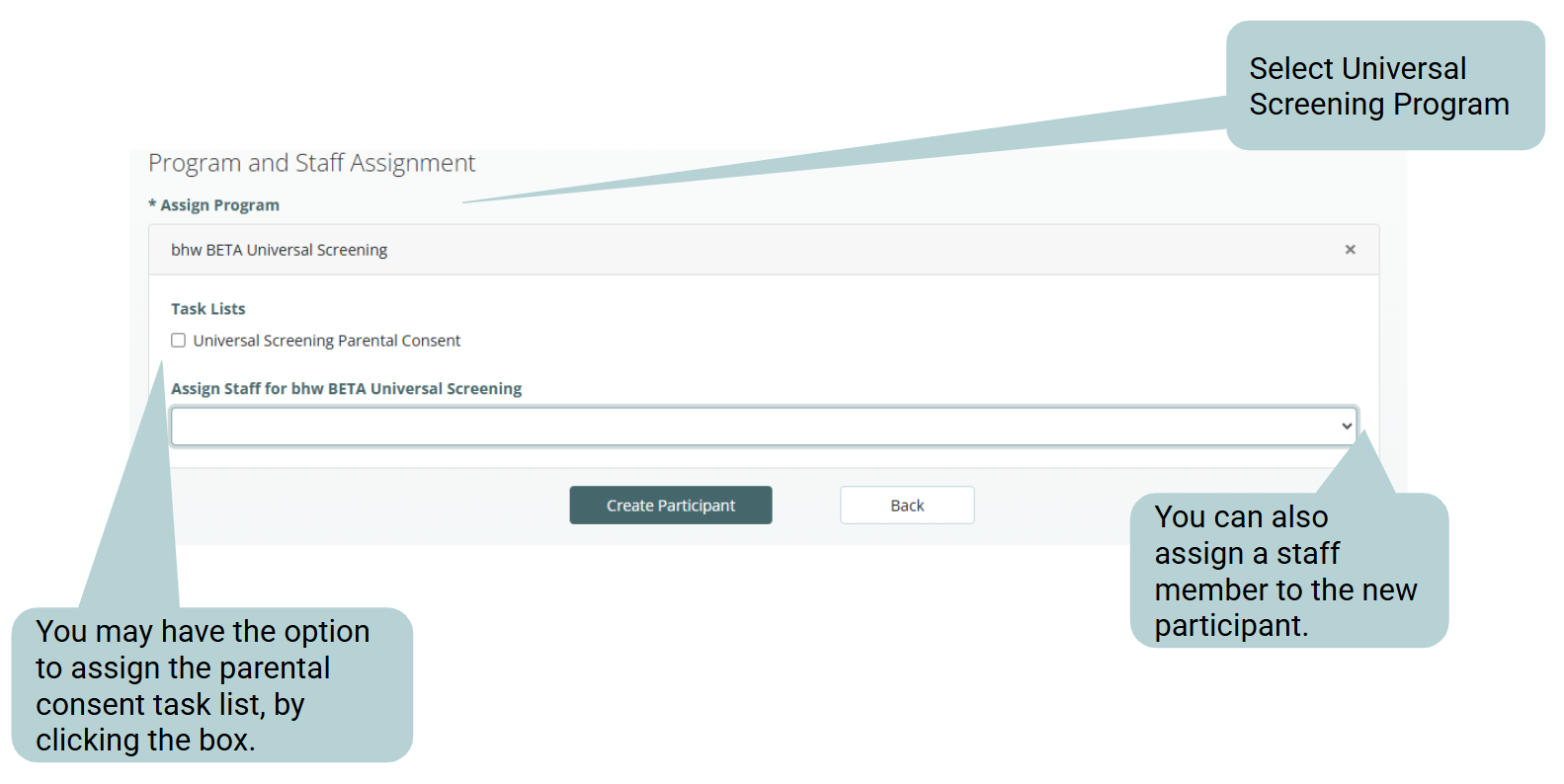
- In the Assign Program dropdown, select the Universal Screening Program your participant will be assigned to.
- You may have the option to add the Universal Screening Parental Consent Task List, if so you can add the task list that way.
- Select staff the participant will be assigned to, if applicable.
- Press Create Participant.
- Once the new participant is created they will be searchable within bhworks and the Universal Screening Program to which they are assigned.
Obtaining Parental Consent
Obtaining Electronic Parental Consent
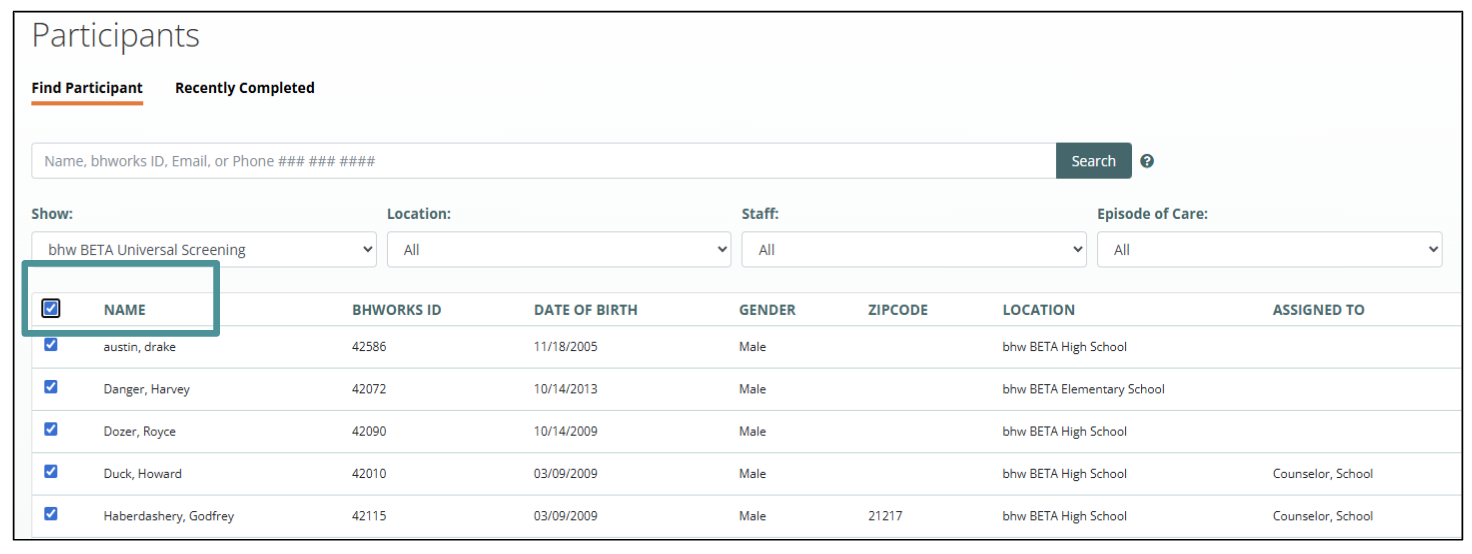
- Select ALL participants in the universal screening program by checking the box next to the title, Name, OR
- Select participants individually by selecting the box next to their name.
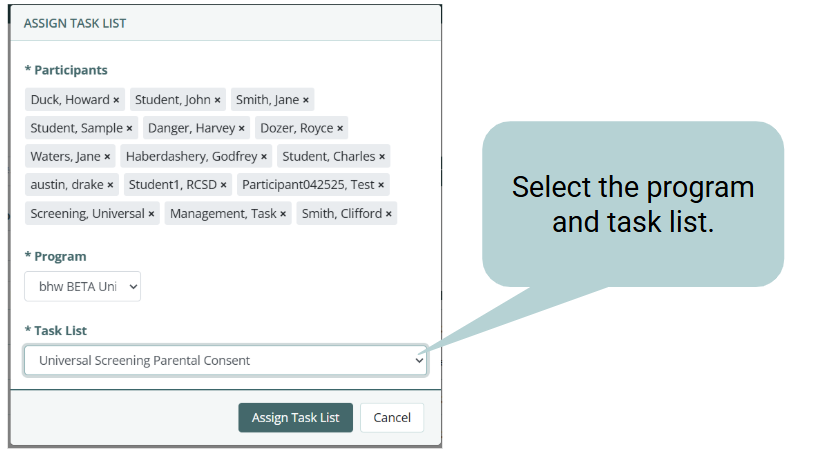
- Once your participants are selected, navigate to the Actions drop-down and select Assign Task List.
- Select the relevant universal screening program.
- Under Task List, select Parental Consent.
- Click Assign Task List.

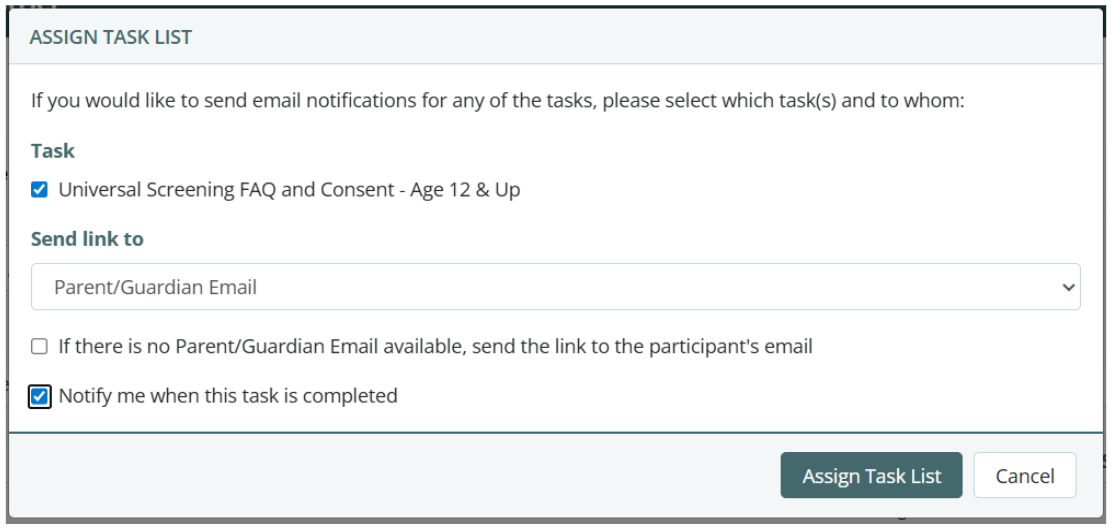
- A pop-up will appear allowing you to select which task you would like to send email notifications for.
- Select the appropriate “Universal Screening FAQ and Consent”.
- Select to send link to the “Parent/Guardian Email”.
- Check the box to “Notify me when this task is completed”.
- Press Assign Task List.
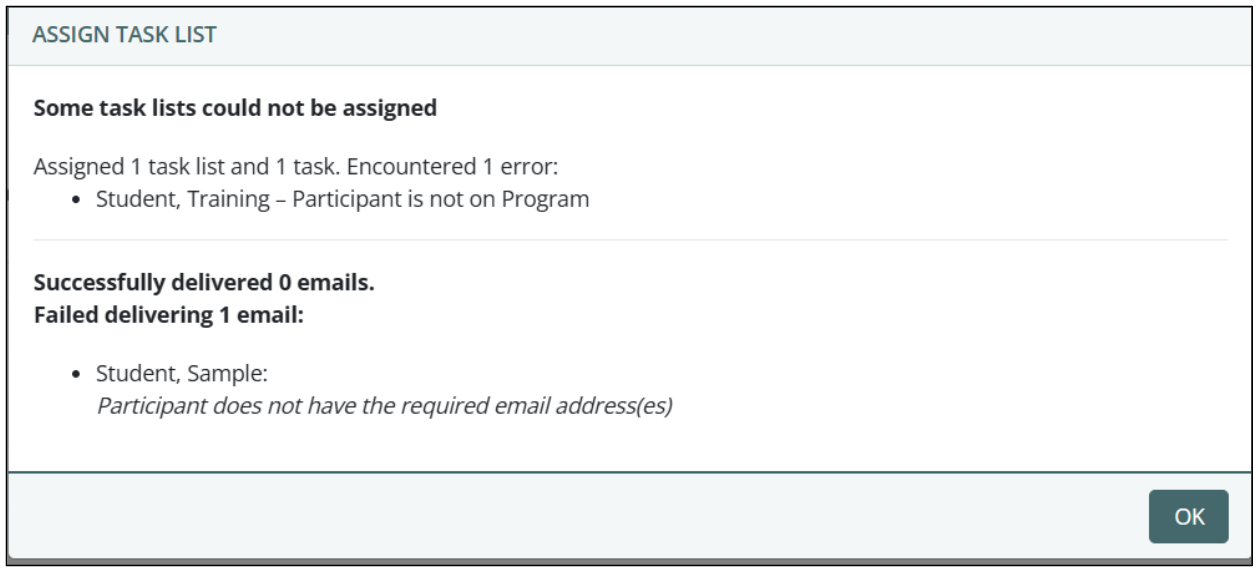
- After assigning the task list, another pop-up will appear, informing you of which emails were sent successfully and which came back with errors. An error can occur if the parent's email is not in the student's profile or if the email failed to deliver.
Manually Uploading Parental Consent
Parental Consent may also be completed by manually uploading a paper copy
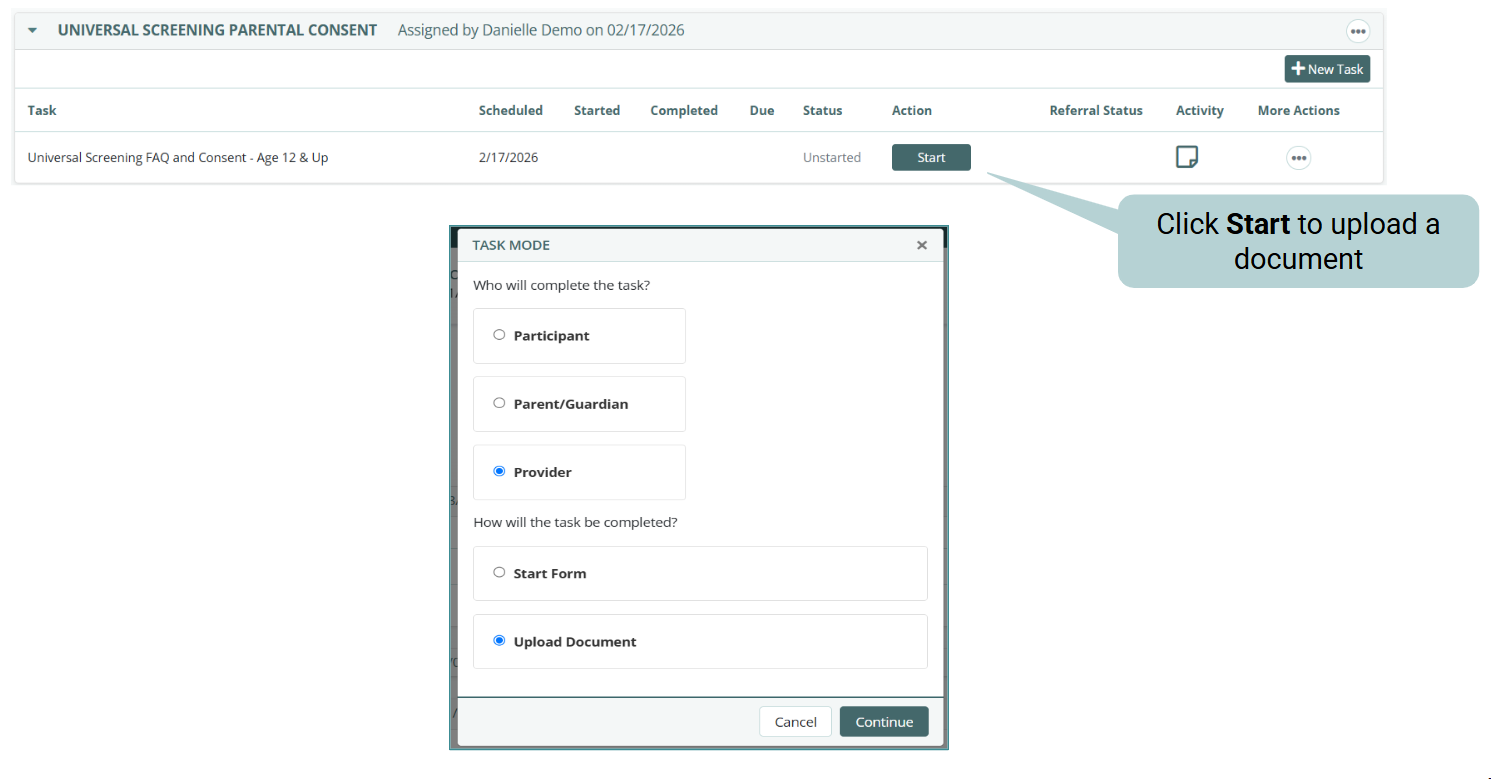
- Navigate to the Task tab in the participant's profile, then select the Start button on the line for the parental consent task.
- Select Who will complete the task, select Upload Document, and click Continue.
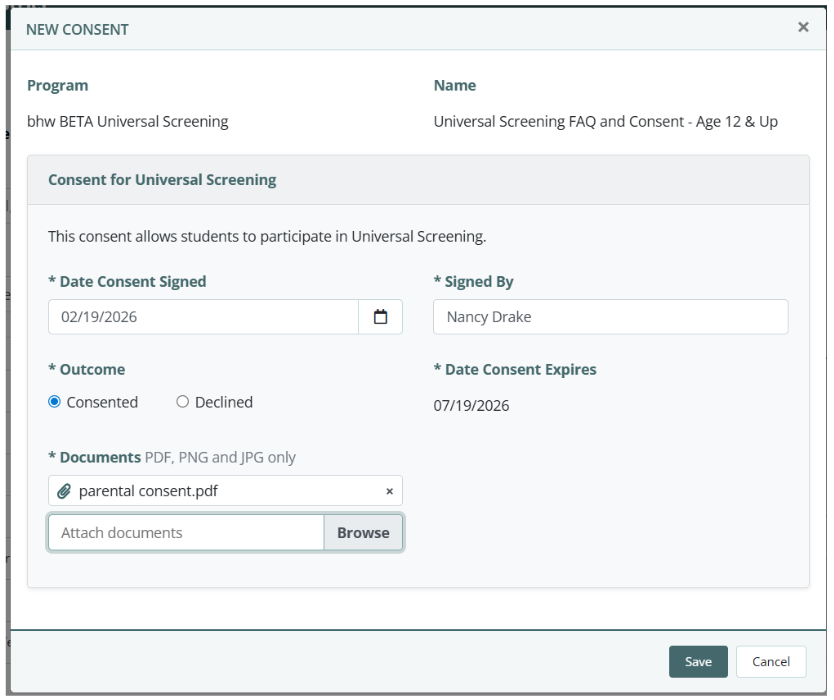
- Enter the date the consent was signed.
- Enter the name of the person who signed the consent.
- Select whether they Consented or Declined.
- Click Browse to upload one or more documents (must be in PDF, PNG, or JPG format).
- Click Save once all fields are completed.
Viewing Completed Parental Consent
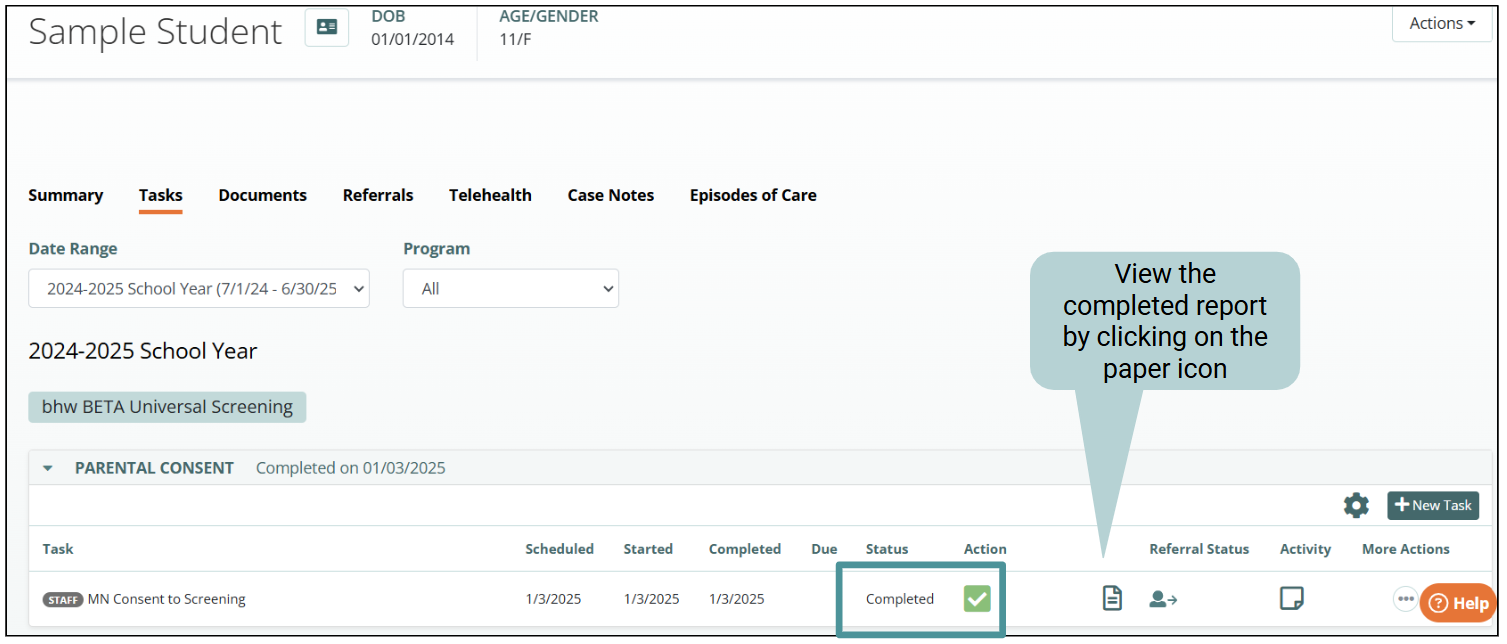
- Once the consent form is completed, the status of the task will update to Completed.
- View the completed electronic consent form by clicking on the paper icon or the manually uploaded consent form by clicking on the paperclip icon.
Episode of Care
Entering an Episode of Care for each student will help to keep track of which students have parental consent and allow us to sort and bulk assign tasks.
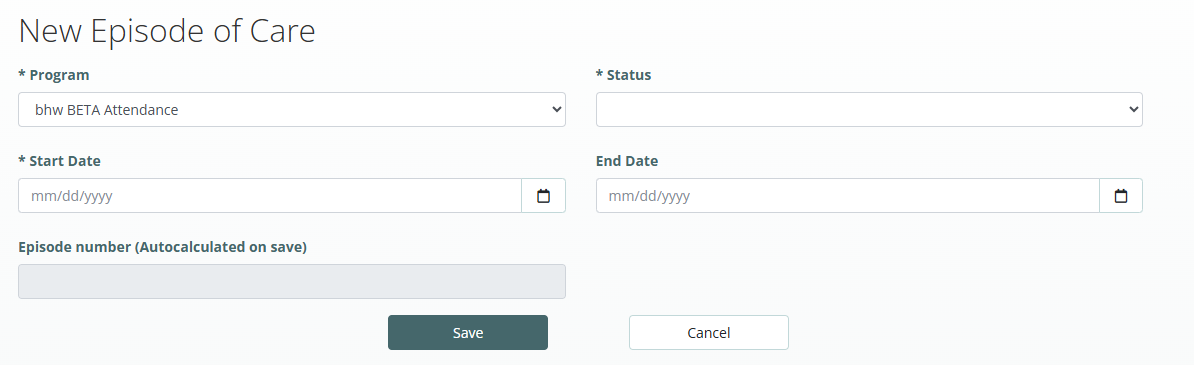
- Navigate into the student’s profile and select the Episode of Care tab.
- Select the +New Episode of Care button.

- Under the Program drop-down, select the program assigned to the student.
- The Status drop-down contains two options: Active or Finished.
- Select Active if the parent signed the consent form.
- Select Finished if the parent did not consent or revoked consent.
- Enter the Start Date, which is the date the consent was signed.
- Enter an End Date only if the parent did not sign the consent form.
- Press Save.
Bulk Assignment of Screening
The Universal Screening form link should should be sent the day before the scheduled screening event. The emailed link will then be available in the student’s email account to access on the day of the screening event. To send the link follow the instructions below.
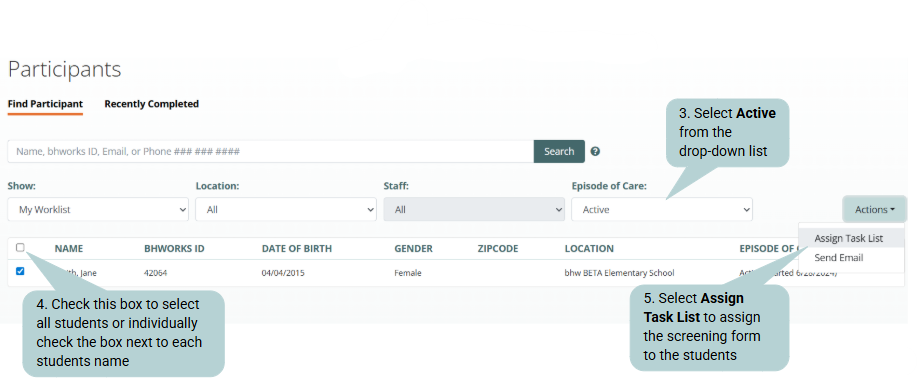
- Navigate to the Participants tab.
- Under the Show drop-down, select your universal screening list.
- Under the Episode of Care drop-down, select Active.
- Select all students on the list by checking the box next to their name.
- Press the Actions button and select Assign Task List from the drop-down.
IMPORTANT: Schools will need to add no-reply@mdlogix.com as an approved sender for emails to be delivered.
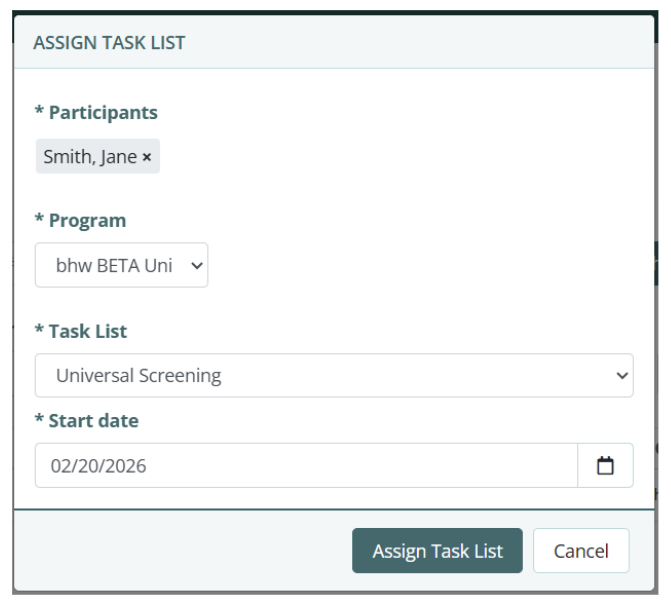
- Select the relevant program from the Program drop-down.
- From the Task List Template drop-down, select the Universal Screening task.
- Select the date the Task List should be scheduled to post on the participant’s page.
- Press Assign Task List to send the screening link to selected students.
Reports & Dashboards
Reports
To view individual student screening results:
- Navigate to the Participants tab.
- Select the Recently Completed tab.
- Click on the report icon for each student.

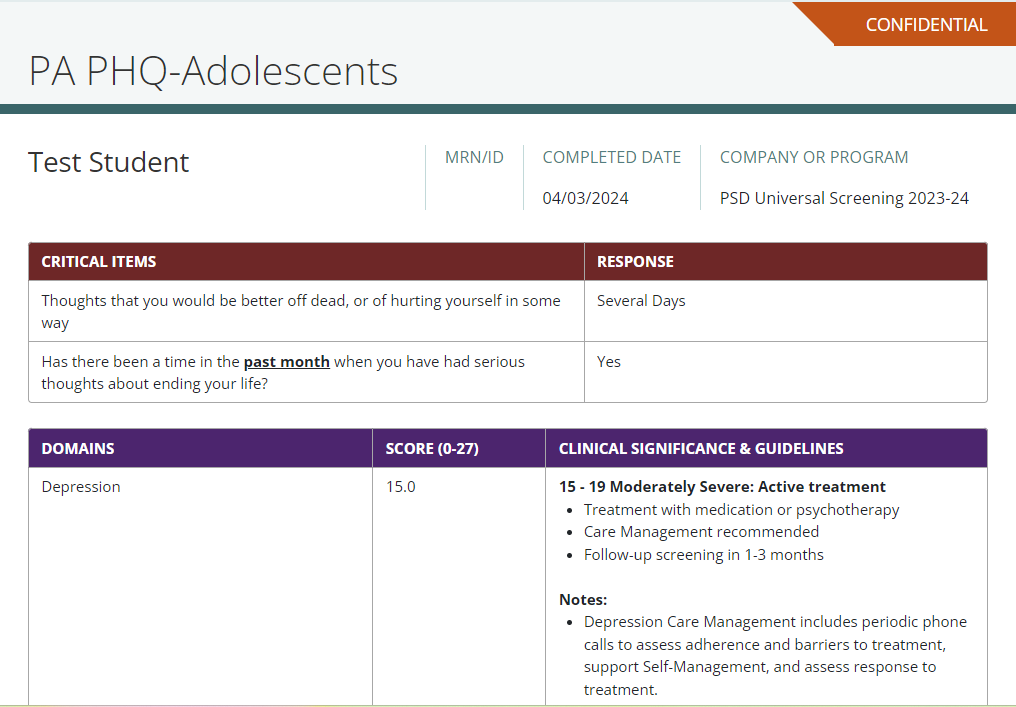
- The example report shows a summary section and all responses for a completed PHQ-A screener.
- The critical item section shows if they identified past or current suicidal ideation.
- A total score is calculated, the clinical significance and guidelines are displayed.
- Rating scale places the student’s results in a low, moderate, or high-risk category to determine who needs immediate help.
- Based on these results, staff can follow their internal processes to connect the student to appropriate resources.
Dashboards
- bhworks contains various aggregate reports and dashboards that are displayed on the Reports tab. These reports and dashboards correspond with the specific screener you chose to use for the universal screening. To view a complete list of reports and dashboards we offer, click this link.
Was this article helpful?
That’s Great!
Thank you for your feedback
Sorry! We couldn't be helpful
Thank you for your feedback
Feedback sent
We appreciate your effort and will try to fix the article