TABLE OF CONTENTS
Add a New User
Navigation and Access
- Only Administrators can create/disable accounts.
- Assign necessary access only.
- Click the Admin tab
- Click on the Staff User option
- Click the +New User
Required Form Fields
- All fields marked with an asterisk are mandatory.
- First & Last Name: Enter user's legal name
- Credentials: Choose from the dropdown
- NPI: Required only for billing accounts
[Insert Image Here]
Important Note Regarding NPI
- If your organization uses a single NPI for multiple providers, do not enter it as the NPI. Instead, enter each provider's individual credential license number in this field for their respective accounts.
Form Fields and Settings
- External Identifier: Typically, this is the user's name from the 3rd party billing platform.
- Username: Create a username for the account; the user's work email address is recommended.
- Primary Phone: Where the Staff User can be contacted.
- Email and Confirm Email: Enter the employee's work email address and re-enter it to confirm.
- Account Status: In the dropdown, click Active.
- Add Organization: From the dropdown box, click the organization the user will oversee (see side panel for details).
- Click Add to confirm.
Organization and Program Setup
- Add Organization: Choose location from the dropdown. Add then select the User's Role.
- Assign to Program: After all location have been added, check the boxes next to the locations the user needs access to.
- Assign Dashboards: Select appropriate reports/dashboards according to the selected Role.
Account Reactivation
You can reactivate the account by clicking in the drop-down box and selecting active. Then check the box below to send a new password link (click Update User at the bottom when finished). The user will receive a password reset link from no-reply@mdlogix.com.
Add a Staff User to a School
- School faculty that will only be using bhworks to enter referrals should be assigned to the individual school(s), not the district.
- They should always be assigned the role of Social Services Personnel.
Steps to Add a Staff User
- Click the Admin tab on the left navigation bar.
- Click the Staff Users Subfolder.
- Enter the User's Name in the search box.
- Click on the User's Name when it appears below.
- Scroll down to Add Organization and click the dropdown arrow.
- Select the target location from the dropdown menu.
- Click the Add button next to the dropdown box.
- In the pop-up window assign a role to the user. Do not stack conflicting roles.
- Under Assign to Program, check all applicable location boxes.
- Click Update User to save and finish.
Adding Reports/Dashboards to Users
Admin Role
Recommended Reports and Dashboards
- Case Notes: Overview, Review
- Discharge Summary: Overview
- Indirect Services: Overview, Report
- Participants: Episode of Care, Program Enrollment
- Referrals: Overview, Referred Participants
- Tasks: Overview (Completed), Report
- Providers: Hours Report
- Forms: Data Export
- Users: Report
Provider Role
Recommended Reports and Dashboards
- Case Notes: My Case Notes Report
- Providers: My Hours Report
- Tasks: Report
- Discharge Summary: Overview*
- Referrals: Overview*
- Case Notes: Case Notes Overview*
*Optional (De-identified, Aggregate Data)
To review the type of data displayed in each Report and Dashboard, please view this article: Descriptions of Reports and Dashboards
Electronic Assessment Tools
If providers are utilizing any of the following electronic assessment tools in bhworks, you can also assign the corresponding Screening Activity dashboard. Available screener dashboards are listed below:
- BHS (Adolescent/Adult)
- BHS (Child)
- C-SSRS
- CAGE-AID
- CRAFFT 2.1/N
- GAD (Adult)
- GAD (Child/Adolescent)
- PHQ (Adolescent)
- PHQ (Adult)
- PHQ-A Screening Report
- SECA (Long Form)
- SECA (Short Form)
- SECA (Universal Screening)
- SRSS-IE (Early Childhood)
- SRSS-IE (Elementary)
- SRSS-IE (Middle/High)
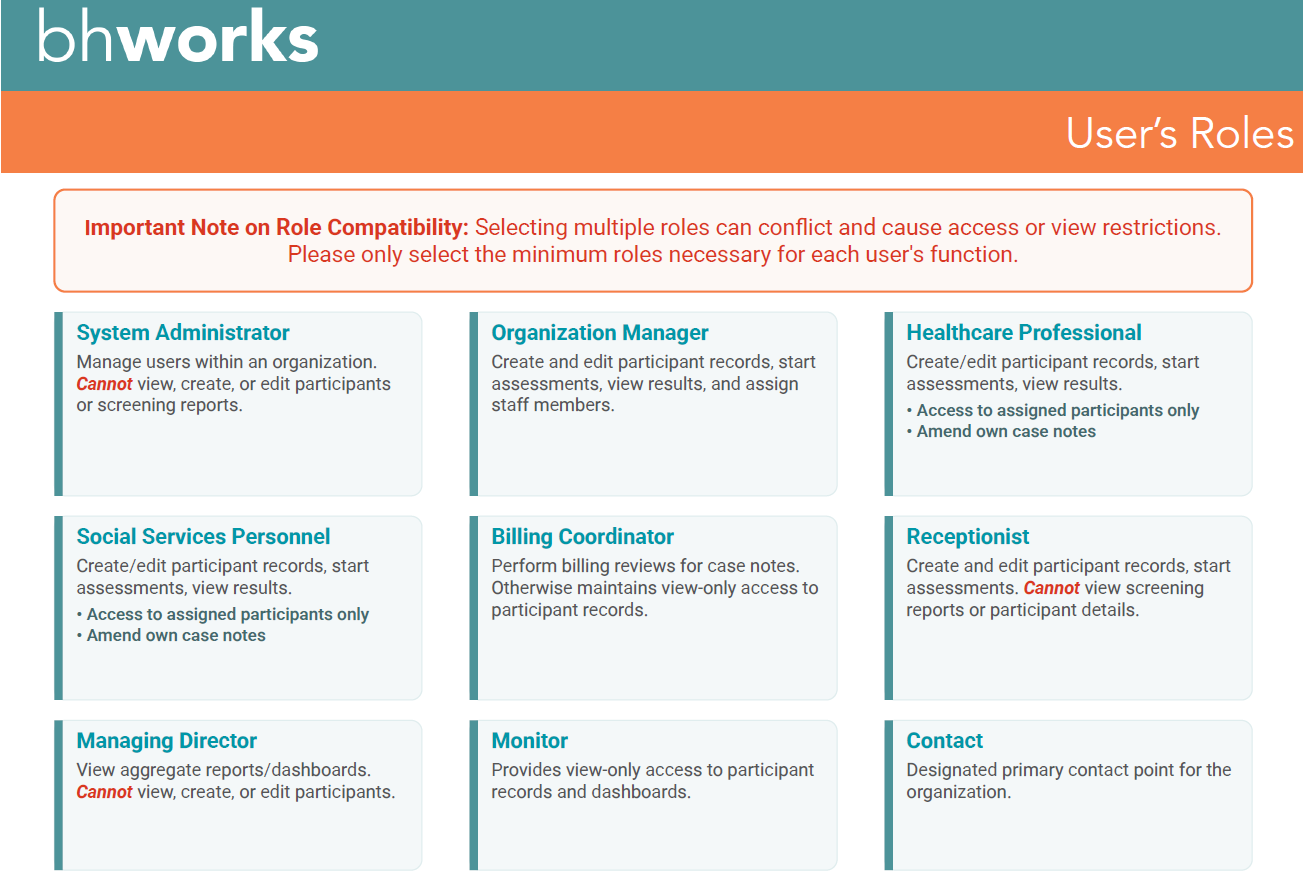
User Roles
bhworks uses role-based permissions to ensure staff members have access to the tools and information necessary for their responsibilities while maintaining participant privacy and data security. Each staff user is assigned one or more roles that determine what functions they can perform within the system.
Learn more about Staff Roles and Permissions here.
Was this article helpful?
That’s Great!
Thank you for your feedback
Sorry! We couldn't be helpful
Thank you for your feedback
Feedback sent
We appreciate your effort and will try to fix the article