TABLE OF CONTENTS
If you want to watch a brief video of the process, please click this link.
Overview
bhworks allows Organization Managers to quickly unassign and reassign staff for multiple participants at once. This feature is useful when transferring caseloads, updating staff assignments, or managing participant assignments across locations.
Prerequisites
Before using this feature:
- You must be a staff user with the Organization Manager role assigned in your profile.
- You must select a program before accessing bulk assignment actions.
Bulk Unassign Staff
Follow these steps to remove staff assignments from multiple participants:
- Select the appropriate Program from the program dropdown menu.
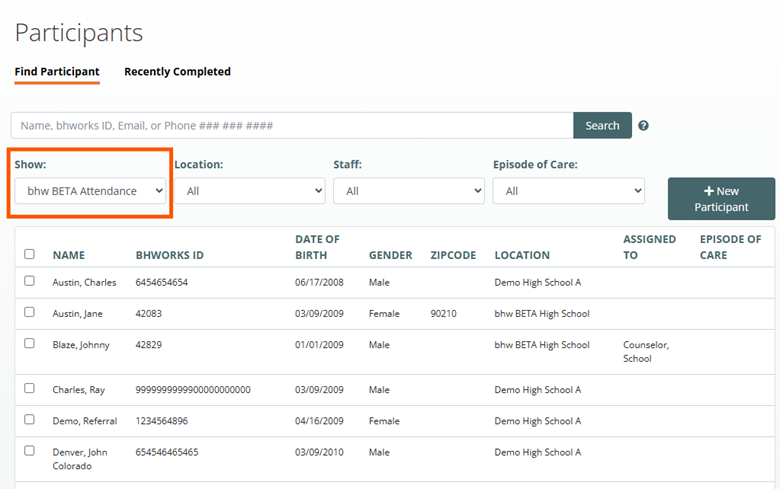
- (Optional) Use the Location or Staff User filters to narrow the participant list.
- If you select a specific staff person from the dropdown menu, you can unassign just that staff person from the participants.
- If you have 'All' selected for staff, you will assign all staff from the selected participants.
- Select the desired location. For example, choose High School to view participants assigned to that location.
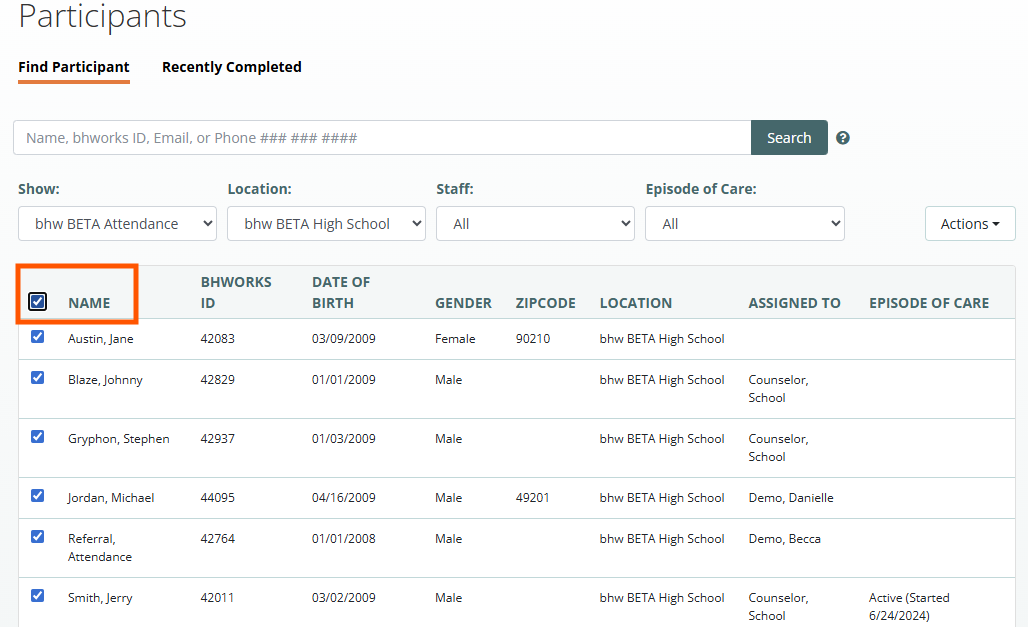
- Select participants by:
- Clicking the checkbox next to individual participant names, or
- Clicking the checkbox next to the Name column header to select all displayed participants.
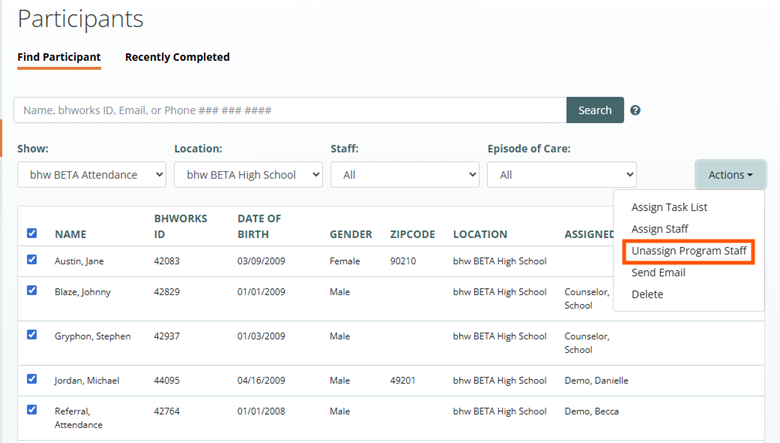
- Click Actions.
- Select Unassign Program Staff.
- Review the participant list.
- If needed, remove individual participants from the unassignment by deselecting them.
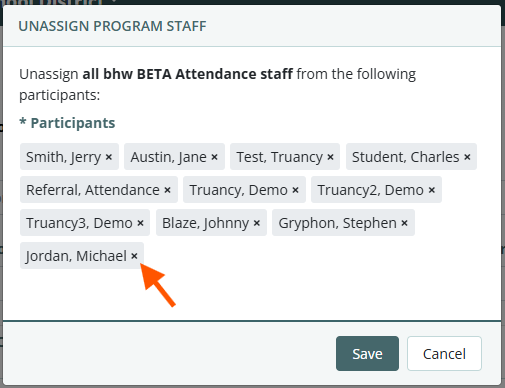
- Click Save.
- Confirm the action when prompted.
Result
After processing is complete, the selected participants will no longer be assigned to any staff user.
Bulk Assign Participants to a New Staff Person
Follow these steps to assign a staff person to multiple participants:
- Select the appropriate Program from the program dropdown menu.
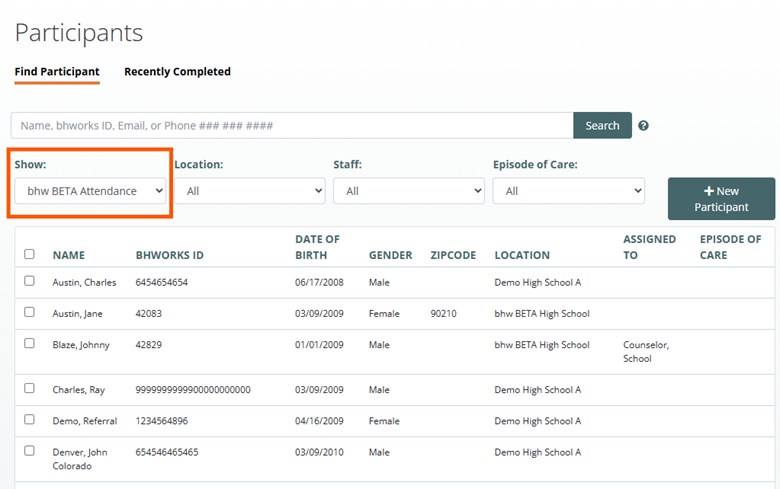
- (Optional) Use the Location filter to narrow the participant list. For example, choose High School to view participants assigned to that location.
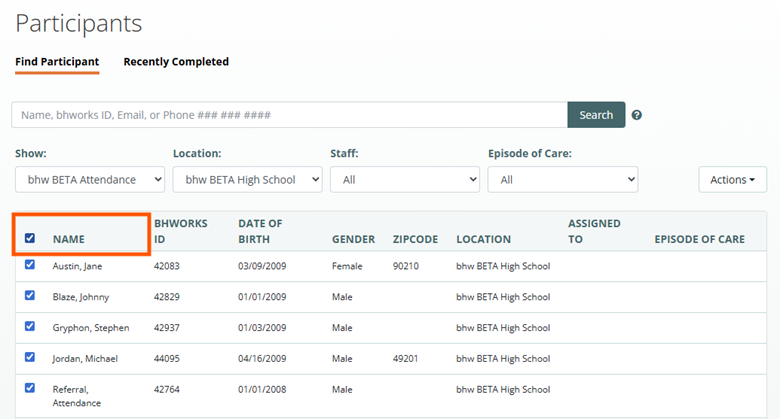
- Select participants by:
- Clicking the checkbox next to individual participant names, or
- Clicking the checkbox next to the Name column header to select all displayed participants.
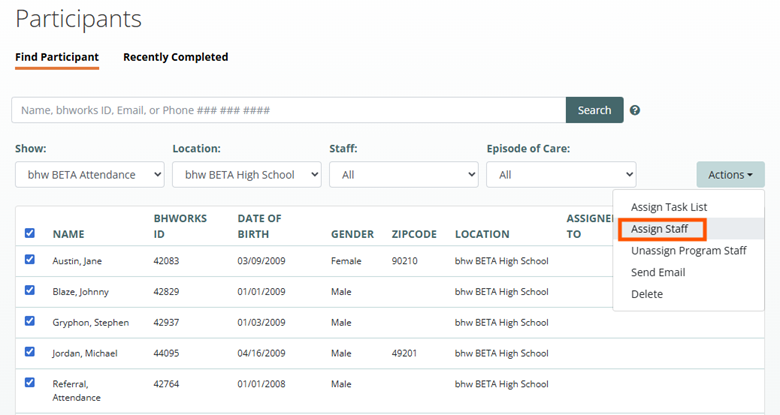
- Click Actions.
- Select Assign Staff.
- Review the participant list.
- If needed, remove individual participants from the assignment by deselecting them.
- Select the staff from the Assign Staff to Participants dropdown menu.
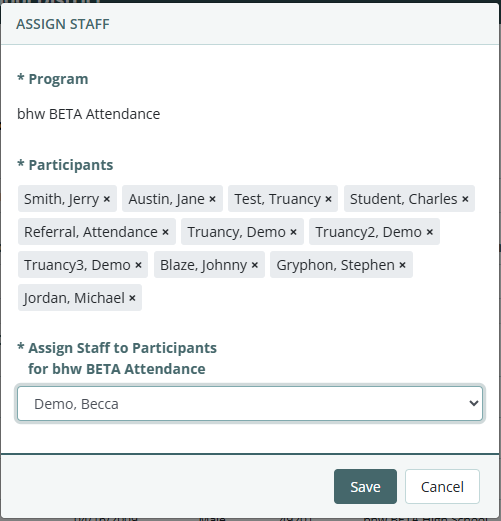
- Click Save.
The system will assign the selected participants to the chosen staff.
Result
Once the process is complete:
- The selected participants will be assigned to the new staff.
- Any participant removed from the selection before saving will not be reassigned.
- The Assigned To column will display the newly assigned staff for each reassigned participant.
Notes
- Bulk assignment actions are available only to users with the Organization Manager role.
- If 'My Worklist' is selected in the Show drop-down menu, the Staff dropdown will be unavailable and you will only have the option to unassign yourself from selected participants.
- You must select a program other than 'My Worklist' to be able to unassign other staff persons.
- Review participant selections carefully before saving changes, as updates will be applied to all selected participants.
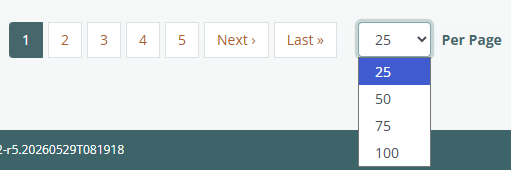
- The Participants list defaults to show 25 participants per page. You can use the drop-down menu at the bottom of the page to increase the number, in increments of 25, up to 100 participants.
Was this article helpful?
That’s Great!
Thank you for your feedback
Sorry! We couldn't be helpful
Thank you for your feedback
Feedback sent
We appreciate your effort and will try to fix the article