The Screening Activity: SCARED (Child Brief) dashboard displays de-identified, aggregated, real-time data information from all SCARED (Child Brief) forms completed for participants.
The forms included are dependent on which versions are assigned to your organization and have at least one completed screen.
The dashboard only displays information about screens that have been finalized and does not include forms that have not been started or are still in progress.
The screening date is based on when the task was completed, not the date the task was originally assigned.
For general information on navigating dashboards, please click this link.
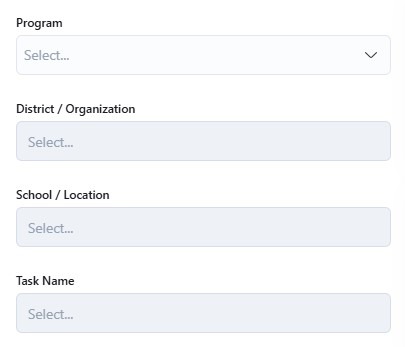
Dropdown/Selectable Filters:
You can use the dropdown/selectable filter options to narrow the dashboard results to only show specific programs, districts/organizations, schools/locations, and/or task name (if there are different versions of the form used). Otherwise, the default view will show all of the forms completed across all participating programs and locations.
Program
District / Organization
School / Location
Task Name (For different versions of the form)
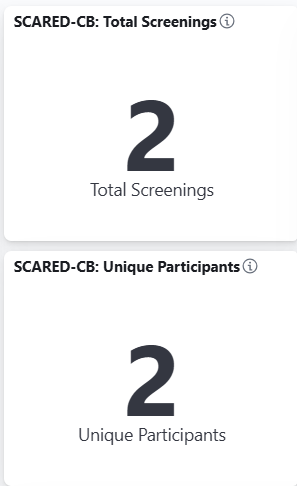
The Screening Activity: SCARED (Child Brief) dashboard is an easy way to pull the following numbers:
Total number of screenings
Total number of unique participants with at least one completed screen
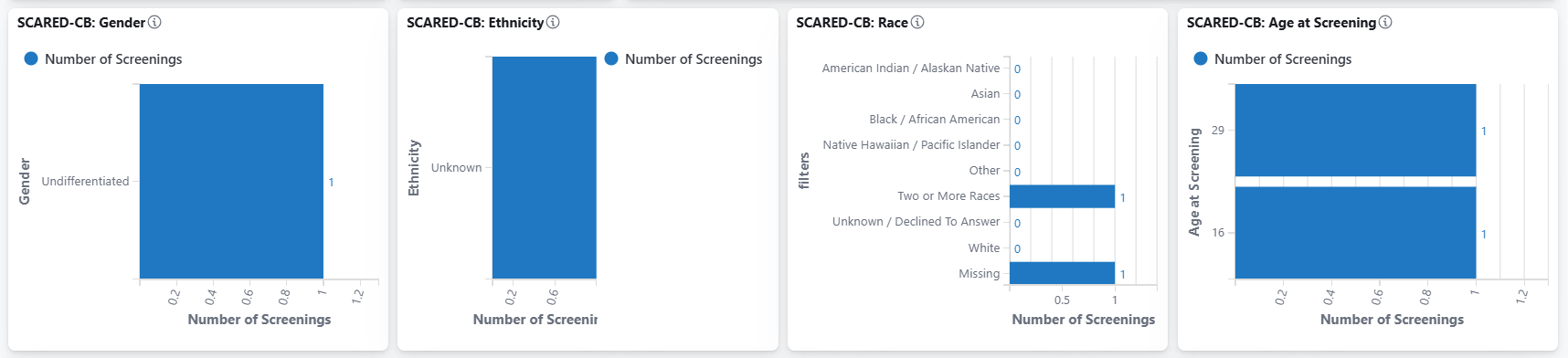
The Screening Activity: SCARED (Child Brief) dashboard also includes the following charts and tables:
Screenings by Month
Demographics of the participants who have at least one SCARED (Child Brief) completed:
Gender
Race
Ethnicity
Age at Screening
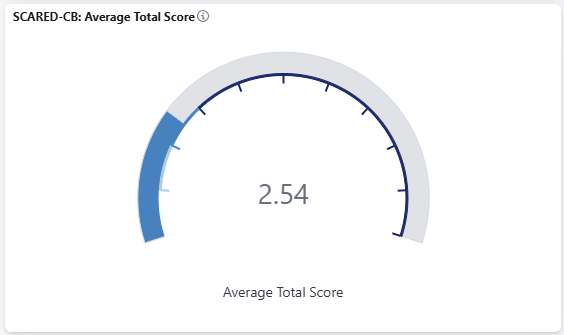
Average Total Score
Pie Charts for the following questions:
I get really frightened for no reason at all
I am afraid to be alone in the house
People tell me that I worry too much
I am scared to go to school
I am shy
Resetting the Dashboard
To clear individual filters, please click the X next to the filter at the top of the dashboard
To reset the dashboard to its original settings, click the Refresh button on your browser

Download to PDF
Once you have defined the dashboard based on your needs, you can export the entire dashboard as a PDF using the Download to PDF button found on the upper right-hand side.

Was this article helpful?
That’s Great!
Thank you for your feedback
Sorry! We couldn't be helpful
Thank you for your feedback
Feedback sent
We appreciate your effort and will try to fix the article